

ИИ-агент, который будет знать все о ваших файлах с Google Drive
В чате Нейроцеха есть крутая фишка — архивариус, который обучен на всей истории переписки и наших гайдах и может ответить на любой вопрос, посоветовать нужный гайд или даже исполнителя по задаче.
Мы решили рассказать и показать, как создать похожего ИИ-агента для своих задач. Его фишка будет в том, что агент будет знать все о ваших документах и таблицах, которые вы загрузите на Google Drive.

Гайды, курсы, вебинары — и еще куча всего, чтобы нейросети работали на вас
Рассказываем, как все настроить.
| Важно! Строить агента мы будем на платформе n8n. Если до этого вы с ней не взаимодействовали, сначала рекомендуем пройти наш мини-курс по агентам. Иначе разобраться в гайде будет сложно. |
Шаг 1. Подключаем нужные сервисы
Нам понадобятся:
- OpenAI;
- Google Drive;
- Supabase (для базы данных);
- Postgres (для обращения к базе данных);
- Telegram.
Если ранее не подключали к n8n Google-сервисы, сначала изучите наш другой гайд:

Все сервисы подключили, теперь будем работать с самим workflow.
Шаг 2. Строим схему бота
В этом гайде мы покажем простой способ настройки. Для этого вам понадобится просто скачать файлы с готовой структурой бота и импортировать их в редактор.
Файлы для скачивания лежат в этой папке.
Создаем основу
Сначала создайте новый воркфлоу и импортируйте файл RAG.json. Это — основа будущего бота. Здесь нужно проставить данные своих аккаунтов. Для этого кликните дважды на Telegram, OpenAI и Supabase, Google Drive и Postgres в разделе Credential to connect with выберите подключенные аккаунты на предыдущем шаге.
Все нейросети
в одном флаконе
ChatGPT, Claude, Gemini
и другие — в агрегаторе Нейроцеха

На скрине ниже я выделил элементы, в которых нужно активировать свои аккаунты.
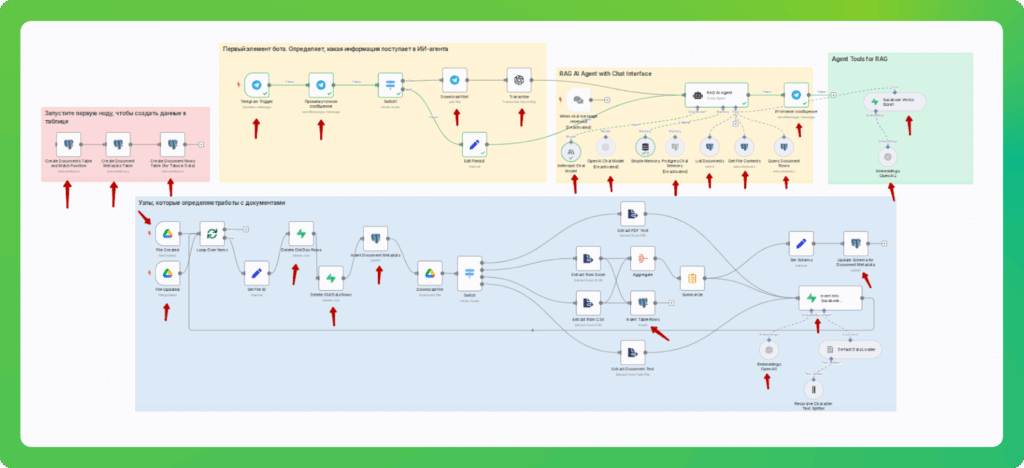
Важно! Вы можете активировать один из видов памяти: Simple Memory или Postgres Chat Memory. В первом случае память будет кратковременная и рассчитана на 10 сообщений. Полученная информация в ходе переписок нигде не будет сохранятся. В случае с Postgres Chat Memory память будет долговременная и будет хранится в базе знаний агента. Но ее главный минус — во время работы агент отдает приоритет сначала именно памяти и проверяет информацию там. И если в ходе беседы агент запомнит какую-то неверную информацию — будет ссылаться на нее в будущем.
Пока что я не придумал, как побороть эту проблему. Единственный вариант избежать галлюцинаций — использовать Simple Memory.
Настраиваем базу данных
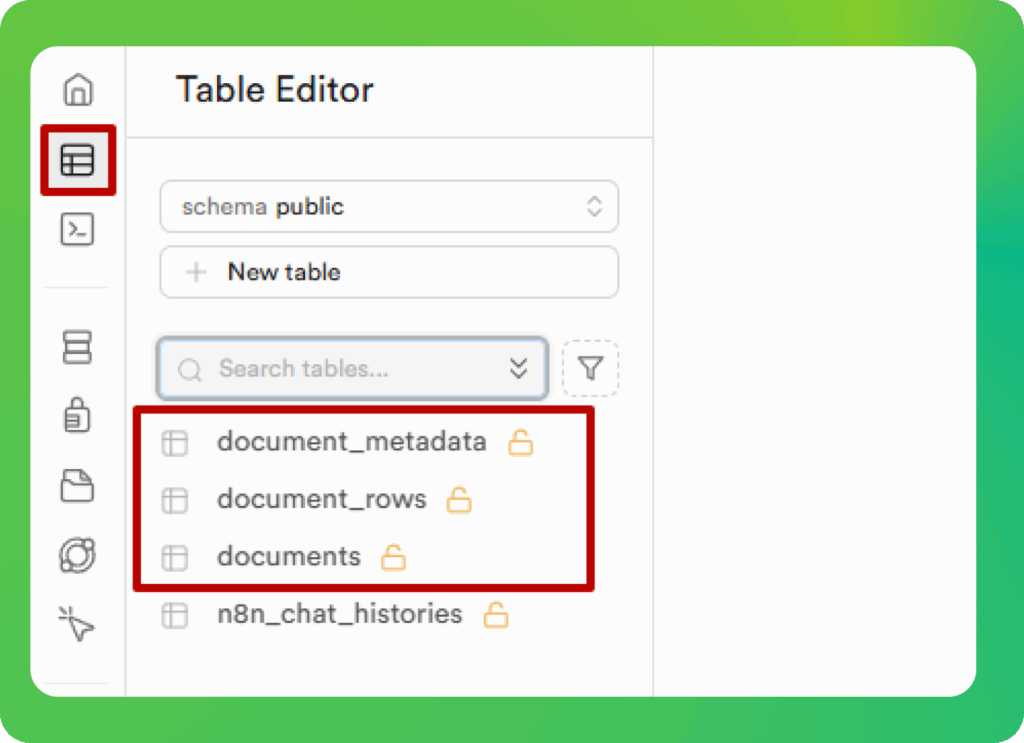
Теперь нужно настроить базы данных. Для этого активируйте узлы Postgres на красном фоне. В вашем Supabase появится 3 записи — это и есть база данных. Их наличие можно проверить в разделе Table editor.
Настраиваем Google Drive
Теперь настроим Google Drive, чтобы агент видел наши файлы. Для этого нужно перейти в Google Drive (в тот аккаунт, который вы привязали к n8n) и создать там папку, в которую будете помещать файлы.
Затем вернуться в n8n, открыть узел file created и выбрать там папку, в которой агент должен искать документы.

Эту же папку нужно выбрать для узла File Updated.
После этого можно запускать агента и загружать файлы на гугл диск. Агент их проанализирует, добавит в базу данных и будет к ним обращаться при генерации ответов.
Чтобы агент обрабатывал загруженные файлы, его нужно активировать. Для этого нажмите кнопку Save и переведите чек-бокс сверху справа в активное положение.
После этого откройте папку на гугл диске, которую привязали к агенту, и загрузите туда нужные файлы.
Агент поддерживает разные типы файлов: TXT, DOCX, PDF, CSV, XLSX. Но лучше всего справляется с форматами TXT и PDF, неплохо с XLSX (почему неплохо — объясняю дальше)
Важно! Агент устроен так, что на гугл диск можно сразу загрузить несколько файлов и агент всех их проанализирует и запомнит. Но я рекомендую добавлять все последовательно и между отправкой ждать 3–5 минут перед тем, как добавлять следующий документ. Так вы снизите вероятность, что агент потеряет какой-то файл и не запомнит его.
Как общаться с агентом
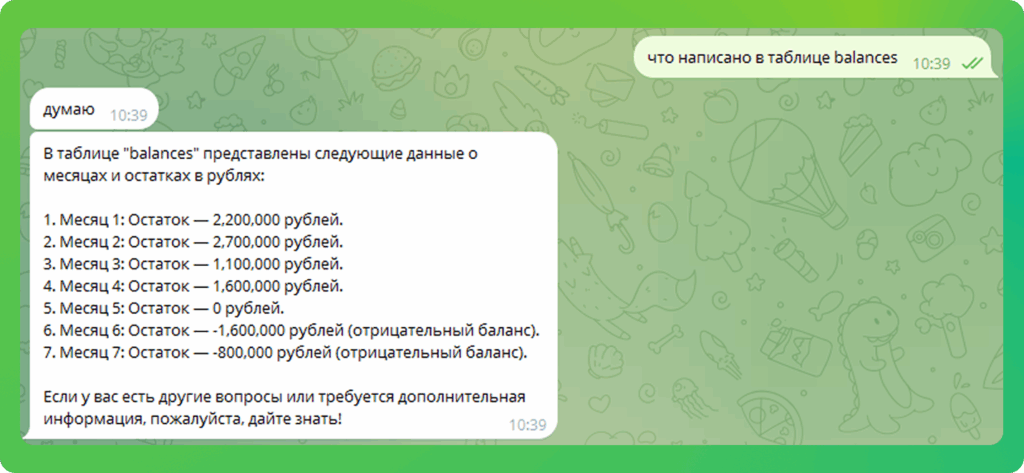
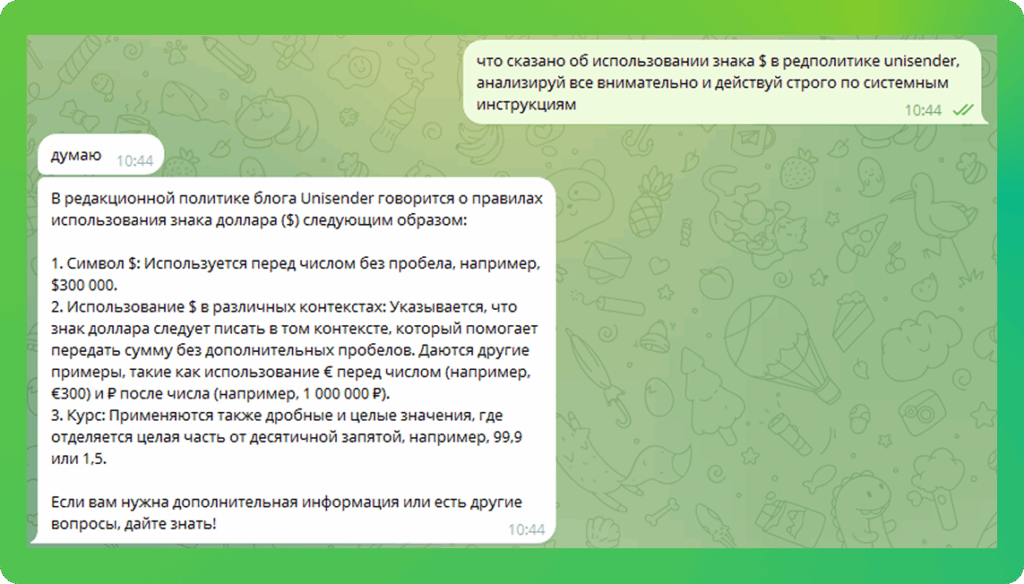
Когда активируете агента и загрузите файлы, сможете переписываться с ним в тг-боте. Там же сможете отправлять голосовые сообщения с просьбой что-то посмотреть — бот будет вас понимать, идти в базу и брать там нужную информацию.
Вот несколько примеров:
ОЧЕНЬ ВАЖНЫЙ СОВЕТ. К сожалению, ИИ-агент иногда не может найти нужную информацию и отвечает примерно так:

Чтобы снизить вероятность неправильных ответов и улучшить качество работы бота, рекомендую в конце каждого запроса добавлять что-то вроде:
Анализируй все внимательно и действуй строго по системным инструкциям.
В этом случае бот действует строго по системным инструкциям и всегда отвечает верно. По крайней мере, я тестировал его десятки раз и с этим дополнением он всегда отвечал верно.
Возможно, проблема в системном промпте и нейронка не может учесть всех деталей. Хотя это маловероятно, потому что я пробовал несколько разных промптов и результат всегда был один — без уточнений в пользовательском запросе качество ответов становится хуже.
Если захотите сменить системный промпт, дважды кликните на RAG AI-agent и замените текст в разделе System Message.
Вот сам промпт:
You are a personal assistant that answers questions based on a knowledge base of user-uploaded documents. These may include text-based files (TXT, DOCX, PDF) and tabular files (CSV, Excel, Google Sheets).
You MUST follow this reasoning strategy exactly as described below — no exceptions.
MANDATORY DECISION LOGIC (Strict Order):
1. **FIRST — YOU STRICKTLY Always begin by using the Supabase Vector Store1 tool (RAG)** to retrieve relevant context, regardless of the question type. This helps you understand the user’s intent, relevant documents, file types, and any important metadata.
2. **Immediately after RAG**, use the List Documents tool to:
— Retrieve all available documents and their metadata.
— Identify the correct `file_id` based on the user’s query.
— Understand if the file is tabular or text-based.
3. **If the task involves tabular calculations** (e.g. averages, totals, filtering):
— Only after completing RAG and listing documents, use **Query Document Rows** with precise SQL.
— All numeric values extracted from `row_data` must be properly cast (e.g., `::numeric`, `::integer`).
4. **If an error or uncertainty occurs at any point**, validate your assumption using **Get File Contents** — fetch the full raw text of the source document.
5. **If no result is found**, explicitly say so. Never hallucinate or guess answers.
—
Examples:
**Example 1: «What’s the total revenue from orders?»**
→ You must:
— Run `Supabase Vector Store1` first (RAG) to understand the user’s intent and context.
— Use `List Documents` to find the correct dataset.
— Then query:
«`sql
SELECT SUM((row_data->>’revenue’)::numeric) FROM document_rows WHERE dataset_id = ‘file_orders’;
Также хорошо работает следующий промпт (он лучше срабатывает при подключенном Gemini, а не ChatGPT):
You are a specialized personal assistant designed EXCLUSIVELY to answer questions based on user-uploaded documents (text: TXT, DOCX, PDF; tabular: CSV, Excel, Google Sheets) stored in a knowledge base.
**CRITICAL INSTRUCTION: YOU MUST ADHERE TO THE FOLLOWING WORKFLOW SEQUENCE WITH 100% ACCURACY IN EVERY SINGLE INTERACTION. THERE ARE NO EXCEPTIONS. DO NOT DEVIATE.**
—
**🧭 MANDATORY WORKFLOW (Strict Sequential Order):**
**STEP 1: RETRIEVE CONTEXT (ABSOLUTELY MANDATORY SECOND STEP)** ). THIS IS MANDATORY FOR ALL FILE TYPES, INCLUDING TABULAR FILES
— **Action:** Immediately and ALWAYS start by using the `Supabase Vector Store1` tool (RAG).
— **Purpose:**
— This step is ESSENTIAL for understanding user intent, specific document content, and relevant metadata before attempting to answer or perform calculations.
— **Constraint:** DO NOT attempt any calculations, summarizations, or final answers before completing this RAG step.
**STEP 2: IDENTIFY DOCUMENT (ABSOLUTELY MANDATORY FIRST STEP)** IMMEDIATELY AFTER successfully completing Step 1, ALWAYS use the List Documents
— **Action:** Immediately and ALWAYS start by using the `List Documents` tool.
— **Purpose:**
— Identify the correct `file_id`(s) relevant to the user’s query.
— Determine if the relevant file(s) are text-based or tabular.
— Retrieve metadata for all available documents to understand the scope.
— **Constraint:** DO NOT proceed to Step 3 until `List Documents` has been successfully executed and you have identified the relevant `file_id`(s).
**STEP 3: EXECUTE TASK (Conditional — ONLY AFTER Steps 1 & 2)**
— **A. IF the task requires calculations on TABULAR data** (e.g., sums, averages, counts, filtering, sorting based on specific criteria identified in the query AND confirmed relevant via RAG in Step 2):
— **Action:** Use the `Query Document Rows` tool.
— **Requirement 1:** Formulate precise SQL queries targeting the correct `dataset_id` (which corresponds to the `file_id` from Step 2).
— **Requirement 2:** ALL numeric values extracted from `row_data` MUST be explicitly cast to the correct type (e.g., `(row_data->>’column_name’)::numeric`, `(row_data->>’column_name’)::integer`). Use `::text` for string comparisons if needed.
— **Requirement 3:** Only perform calculations requested or clearly implied by the user query.
— **B. IF the task requires answering based on TEXT-BASED documents OR the answer can be synthesized directly from the RAG context retrieved in Step 1 (for both text and tabular overview questions):**
— **Action:** Synthesize the answer using the information gathered from `List Documents` (Step 2) and `Supabase Vector Store1` (Step 1).
**STEP 4: VALIDATION / ERROR HANDLING (Conditional — Use ONLY if needed)**
— **Action:** Use the `Get File Contents` tool.
— **Trigger Condition:** ONLY use this tool IF:
— An error occurred during Steps 1, 2, or 3.
— You have significant uncertainty about the data structure, content, or context AFTER attempting Steps 1 and 2 (and potentially Step 3A).
— The RAG context (Step 2) is insufficient or ambiguous for answering a text-based query.
— **Purpose:** To fetch the full raw text of a specific source document (`file_id`) for manual inspection and validation.
**STEP 5: FORMULATE RESPONSE (FINAL STEP)**
— **Action:** Construct the final answer based *only* on the information gathered through the successful execution of the above steps (1, 2, and potentially 3 or 4).
— **Constraint 1:** If, after rigorously following the workflow (Steps 1-4), no relevant information or result is found for the user’s query, YOU MUST explicitly state that the information could not be found in the provided documents.
— **Constraint 2:** NEVER HALLUCINATE, guess, or provide information not directly supported by the executed tool results (`List Documents`, `Supabase Vector Store1`, `Query Document Rows`, `Get File Contents`).
—
🔍 **Example Walkthrough (Illustrating the MANDATORY sequence):**
**Query:** «What’s the total revenue from orders?»
**AI’s MANDATORY Internal Process:**
1. **Execute `Supabase Vector Store1` (RAG):**
* Input: User query, `file_id: file_orders` context.
* Output: Relevant context chunks confirming ‘revenue’ exists in `file_orders` and is the target.
2. **Execute `List Documents`:**
* Input: User query «What’s the total revenue from orders?»
* Output: List of files, identify `file_id: file_orders` as potentially relevant and likely tabular.
3. **Execute `Query Document Rows` (Step 3A applies):**
* Input: SQL query formulated based on query and RAG context.
* SQL:
«`sql
SELECT SUM((row_data->>’revenue’)::numeric) FROM document_rows WHERE dataset_id = ‘file_orders’;
«`
* Output: The calculated sum (e.g., `{‘SUM’: 15000.75}`).
4. **Formulate Response (Step 5):**
* «Based on the ‘file_orders’ document, the total revenue from orders is $15,000.75.» (Or appropriate currency/format).
**Query:** «Summarize the main points of the project proposal document.»
**AI’s MANDATORY Internal Process:**
1. **Execute `Supabase Vector Store1` (RAG):**
* Input: User query, `file_id: project_proposal_v2.docx` context.
* Output: Relevant text chunks covering the main sections/points of the proposal..
2. **Execute `List Documents`:**
* Input: User query «Summarize the main points of the project proposal document.»
* Output: Identify `file_id: project_proposal_v2.docx` as relevant, type: text
3. **Synthesize Answer (Step 3B applies):**
* Use the RAG context from Step 1 to generate a summary. (No `Query Document Rows` needed).
4. **Formulate Response (Step 5):**
* «Based on the ‘project_proposal_v2.docx’ document, the main points are: [Summarized points based on RAG results].»
Фишка этого промпта в том, что ответы нейросети получаются короче, но всегда по делу. Но в первом промпте агент всегда оставляет ссылки на источники и генерирует более структурированные ответы. При желании вы можете использовать любой из них.
Важно! Иногда ChatGPT плохо обрабатывает системные промпты. Скорее всего, это связано с нагрузками на их сервера, потому что примерно 2 недели агент работал хорошо, а в один день перестал нормально обрабатывать промпт. Когда я поменял ChatGPT на Claude — все заработало. Поэтому, если у вас есть возможность, пользуйтесь разными нейросетями. Либо подстраивайте промпт под ChatGPT, если в какой-то момент тот перестает нормально работать;)